Setting up DUO Mobile App
Last updated: Jul 08, 2026
2109
views

Setting up DUO Mobile App
Download the App
- Download and install the Duo Mobile application on your smartphone via the Apple App Store or Google Play Store

- Login to Allen ISD Portal
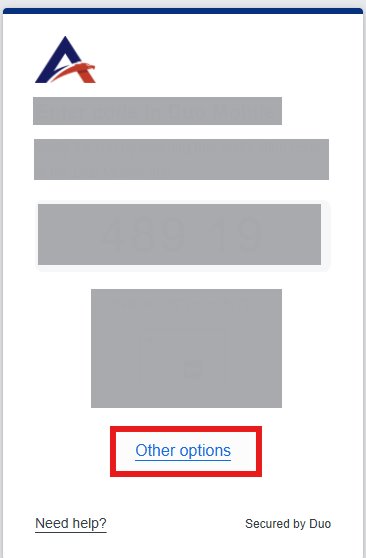
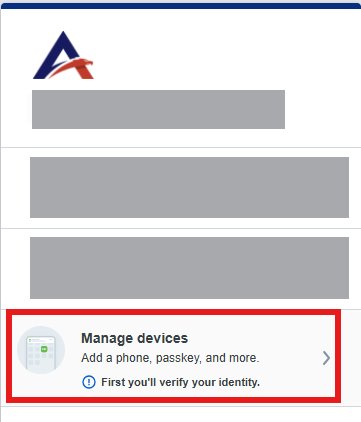
- When the Duo prompt appears, click or tap Other Options and select Manage Devices.
-
Duo will prompt you to verify ownership of the account. Choose Text Message (SMS).
-
Enter the passcode you receive via text and click Verify.
Add and Activate Duo Mobile
-
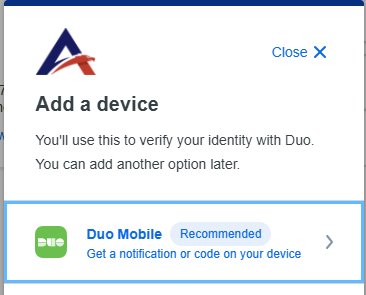
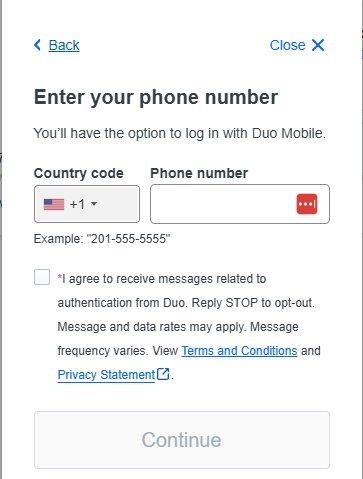
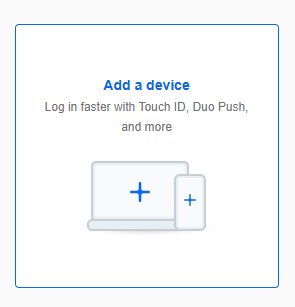
Once inside the Device Management portal, click Add a device.
-
Open the Duo Mobile app on your phone, tap the + (Add) button, and select Use QR code.
-
Hold your phone's camera up to the QR code displayed on your computer screen.
-
Complete the setup. The next time you log in, you will be able to tap Duo Push for an instant approval notification.
-
If you have any questions or need assistance, please contact the Allen ISD Help Desk at 400222 or 469-675-2000